
How do you create an assembly structure that makes sense to other people? How do you keep large assemblies from becoming sluggish and unworkable? I’ll share my insights on SolidWorks assembly modeling in this post.
Three mates in one: the origin mate!
Note: an updated version of this blog post can be found here.
Here is another quick tip for you. It’s a feature that you don’t easily find when you’re just fiddling with SolidWorks, it basically has to be pointed out to you by someone else (thanks Ryelle!).
My previous procedure for mating the first part of an assembly
I am very detail oriented when I am setting up 3D models. That is why the part/assembly at the top of my assembly tree is always the main component. It can for example be the frame of my machine, or the surroundings where the machine will be installed.
When this component is inserted, I immediately remove the fixed position property (right click > Float) because it looks like a lazy person just left it there. Then I add three mates: Front Plane to Front Plane, Top Plane to Top Plane and Right Plane to Right Plane. It is a chore to do this every time, but there is no other option. Or is there?
When to use virtual parts in SolidWorks
Note: an updated version of this post can be found here.
Virtual parts are awesome. They exist, but they are not actual files. They improve your designing speed by skipping some of administrative tasks, but they are tricky. They might not get saved properly and changes might disappear. Crashes might cost you more than the usual amount.
Adding multiple leaders to notes
A few months ago I asked myself the question: how can I add multiple arrows (or leaders) to notes? Yesterday I received the same question from an experienced used, so I thought I’d write a quick tip about the subject.
It turns out to be easy. When you have an existing note, just click the point of the arrow of an existing annotation, hold the ctrl key and drag out another leader!
Hi Twitter, this is Blog
It has begun. I created a blog and wrote my first posts to share my knowledge and appreciation for 3D design in general and SolidWorks in particular.
A big shoutout to John Sonmez from https://simpleprogrammer.com/. He created an email course on how to create a blog, in which he pushes you to just start with the blog immediately. I followed his advice and now we’re getting close to a thousand hits, woohoo. Let’s see if we can improve my current record of 500.000 hits in a month from back when I was building casemods at Bit-tech.
All you need to know about linear patterns
Hi there, it’s me again, Peter. This time I’ll teach you something about linear patterns in SolidWorks. Because you need to use them in your designs. If you don’t use them already, please start right now. Because you are wasting money.
Whether you just don’t add all copies of a part to an assembly or you copy in every fastener manually, you are wasting money. If you go through the effort of adding each item by hand, you are wasting time (=money). If you are refusing to add each item by patterns, you are creating technical debt that will come back and bite you. Incomplete models will result in lower estimates for masses, loads and cost. A bolt that isn’t added to a design can’t be checked on interferences with other parts, it can’t be checked on the thread depth or whether a tool can actually reach the bolt. So complete your assembly, and use patterns.
Continue reading “All you need to know about linear patterns”
Solidworks VBA macro not saving?
This is some weird behavoir of SolidWorks that I have come to understand and accept over time. It might not even be SolidWorks’s fault, but that’s where I have encountered it and where it has bugged me so many times.
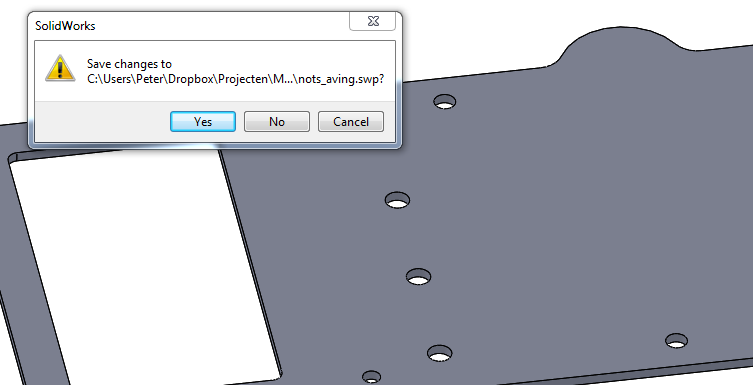
You may notice this non-saving behavior when you are working on a macro in Visual Basic for Applications, or VBA for short. You will click on save and you assume the macro has been stored for all eternity. Then you close the editor and you get the following pop-up:
Best practices: Part design
In my previous post I listed some of the best practices when creating sketches in Solidworks. I decided to tackle the topic of parts next, because it is the next logical step in the design of, well, anything. Have you ever bought an assembly without parts?
Best practices
Design before you sketch
If you want to create a good design, you have to know what you are going to draw up before you open up SolidWorks. You can’t iteratively design a part without having a clear image of the overall design. If you do start modeling immediately, chances are that you end up with an optimal design of a poor solution. So turn off your monitor, grab a drawing pad and test your first ideas on paper first.
Best practices: Sketches
Good old sketch mode. You use it every time you create a part (except when you import one, that is). It was present in SolidWorks 95, the very first version of Solidworks, and it already worked roughly the same as it does nowadays. Back then it looked something like this:

Do you guys remember that? I surely don’t, I was nine years old at the time! Now that I’m close to ten years of using SolidWorks, here are some of the lessons that I’ve picked up along the way on how to properly use sketch mode.
Solidworks InPlace mates
Note: an updated version of this post can be found here.
I recently ran into these weird mates in SolidWorks when I was using virtual parts. Then suddenly, the mates stopped appearing, and I blamed the computer for that. As usual, this wasn’t a piece of software acting inconsistently, it once again was a user action that triggered the change in behavior. I couldn’t find much info about the InPlace mates online, so I decided to document it myself.
What are InPlace mates?
InPlace mates are a special kind of Coincident mates that are only created when you work in an assembly with virtual parts. They mate a virtual part in all directions to an existing part, without fixing the parts in space. They are created automatically without any input from the user. You also can’t edit them, they can only be deleted. That’s why I see them as a placeholder, they exist until you replace them with proper mates.