
How do you create an assembly structure that makes sense to other people? How do you keep large assemblies from becoming sluggish and unworkable? I’ll share my insights on SolidWorks assembly modeling in this post.
Best practices
Use a proper template
Templates are used to make sure that all assemblies created within a company or a project have identical properties. These properties included units, dimension precision, image quality and many, many more.
You can also add items to assembly templates so they can be used everywhere. A solid tip is adding axes on the intersection of the front, top and right planes. These three axes (in X, Y and Z direction) can now be used for mating, and these mates will rarely break. Custom properties are also a good candidate to be added to a template.
You can create an assembly template by opening an assembly and clicking Save As. You can now select Assembly Templates (*.ASMDOT) as the file type. Make sure you save the file in the standard template location though.
The first component is special
The component at the top of your assembly tree should have earned its pole position. It should be the basis on which the entire assembly is built. It can for example be a model of the surroundings or the frame of the machine.
Remove the fixed property (right click > Float) immediately after the component is inserted, don’t be lazy. Now make sure it is properly mated in place. That means using an origin coincident mate or creating three coincident mates on the assembly planes.
Virtual parts
Virtual parts are not actual files, they are saved internally in the assembly file. You can use them to quickly model concepts and they behave mostly like normal parts. That means you can add configurations, mates and colors to them.
Just make sure you save the virtual parts as real files somewhere along the road in your design process. They increase the size of the assembly and you can easily lose changes. If you want to know more, please check out my article on virtual parts.
Use configurations
If you ever have created multiple parts or assemblies that were nearly identical, you now that configurations can a blessing. They allow you to vary:
- Suppression state of:
- Parts
- Subassemblies
- Mates
- Mate dimensions
- Part/assembly configurations
- Materials
- Display states
The list is not exhaustive, but these are the properties that I vary most often. A basic video tutorial on configurations can be found here.
Keep em moving
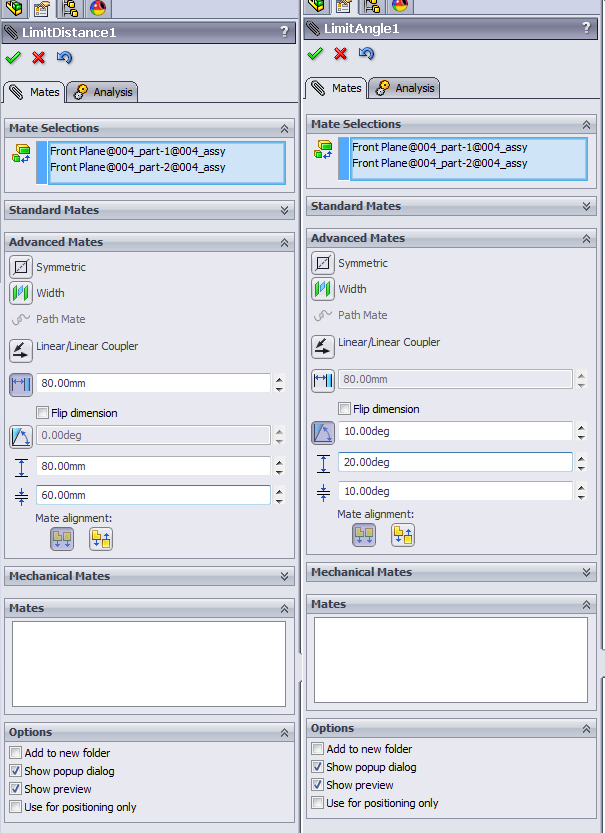
I want my 3D models to be a proper representation of the real world. So if a part should move in real life, it should move in the assembly. You can do this by adding a Limit Distance or Limit Angle mates, they can be found in the Advanced tab of the mates window.
When you insert an assembly with moving parts into a higher assembly, part movements are disabled by default. If you want to allow those movements in the top assembly as well, you have to edit the properties by right clicking the subassembly in the tree and opening the properties window. You can now set the assembly to from “Rigid” to “Flexible” and voilá.
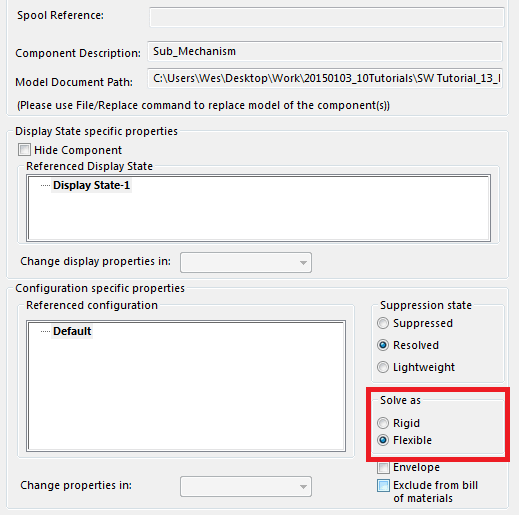
A more in-depth tutorial on rigid/flexible assemblies can be found at 3DEngr.com. That is also where I got the image shown above from.
Assembly machining should be modeled in the assembly
When parts are machined after they are welded or bolted together, the machined features should be present in the assembly as well. Don’t extrude holes in parts and then hide them using configurations, this will only create confusion and it will increase the chance on the wrong part being manufactured.
The assembly tab in the Command manager holds all kinds or ways to shoot holes in your assembly. Notice there are no extrusion features present, you can only remove material.

How to minimize performance degradation
It always helps to have a blazing fast PC with the latest Intel i9 septacore processor. But if you want to keep the assembly snappy regardless of hardware requirements, here are some pointers:
- Minimize the amount of configurations, because configs will increase the file size
- Create subassemblies when possible. This will limit the amount of mates in the main assembly
- Only make subassemblies flexible when needed
- Minimize the available degrees of freedom, so properly mate all parts
- Minimize dependencies and relations between parts and assemblies
- Avoid virtual parts in the later stages of the design process
- Avoid assemblies with both massive and tiny parts. Apparently the smallest part determines the available amount of detail in the assembly
- Use Large Assembly Mode when you’re dealing with massive assemblies (duh)
- Create lightweight assembly configurations with suppressed fasteners and internal components
- Use SolidWorks SpeedPak to simplify parts of your models
More tips on working with large assemblies can be found in these blog posts by SolidSmack, Javelin Technologies and Engineers rule.
Perform regular checks
The past work week was rather awful for me, because I found a bunch of reasons why a particular design was not going to hold up in real life. It was so close to being finished, and now we basically have to start over.
That is why I really urge you to do continuous checks on your assemblies. Those checks can take place in the following forms:
- Rotate, rotate, rotate. Go get a 3D mouse at 3dconnexion.com and you’ll be able to spot issues much sooner because you’ll be inspecting the assembly every day from every angle.
- Make cross sections regularly so you can spot overlaps
- Use the Assembly Visualization feature to spot missing materials and masses. Check out this video tutorial by CADD Edge.
- Use the Interference detection mode to check for interferences and overlaps. Video tutorial by Fisher / Unitech
- Use the Hole Alignment tool to check if holes in different parts line up. Video tutorial by CADD Edge
Final words
There you have it, the basics of proper assembly design. As this is just my knowledge distilled down to a thousand words, I’m sure I missed something. Please let me know in the comments or via email or Twitter if I did.
You can’t learn enough in one day. Have you read my best practice articles on sketches or parts already? All of the my previous best practices articles can be found here.