
An updated version of this post can be found at the CAD Booster blog.
In my first years, suppliers frequently came back to me with questions and missing dimensions. One time I received the remark: “Why is there a radius dimension on the drawing when a diameter would be more useful? I can’t believe you let your software determine what you can or can’t do.”
I told him he had a point, but that I couldn’t change the dimension to a diameter. Turns out I was wrong.
It is 2012 and it’s the first year after my graduation. I have scored my first real job and they made me responsible for the 3D designs and 2D drawings of the mechanical designs.
Not because I was the best, mostly because I was the only one that was supposed to know how to make those drawings. I can imagine the quality of my drawings of those days was pretty poor.
Every tool has its limits. It’s just that most pieces of modern software, including SolidWorks, have so many buttons and functions to play with. Often it is just the user that doesn’t know where to find these buttons.
The fact that many users learn to use the tool without dedicated training also doesn’t really help.
Radius or diameter dimensions
Imagine you are designing a leaf spring with a hole hinge, a super awesome hinge out of a single piece of metal that hasn’t got any play.
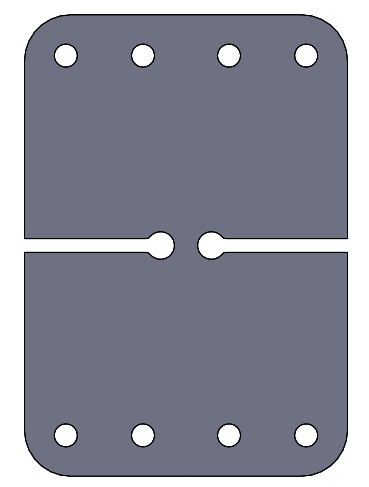
When creating a drawing, it will automatically show a radius dimension on the arcs that are not complete circles. Suppose now I want to change the R3 dimension into a Ø6 dimension.

That can be done is this menu that’ll show up when a dimension is selected. The two options in red will turn your dimension into a diameter.

I have selected the option on the right. This will give you a diameter dimension, but you’ll have to drag it by the anchor point to position it.

The image below shows the final result. The hole is now really portrayed as a diameter and it’s positioned correctly.

That wasn’t so hard, was it?