
Macros can be great for replacing repetitive manual labor (usually in the form of mindless clicking) with robotized micro-tasks. If you can think of a task that you have to do often enough and if it can be standardized, you can probably automate it.
You can even add buttons to your SolidWorks toolbar. But sometimes they just stop working. I get a help request for this every week or so. Luckily the solution is very simple.

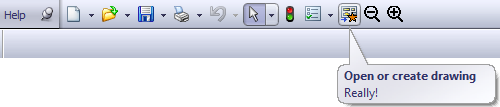
The image above shows my SolidWorks toolbar with a few of my most often-used macros. When a part or assembly is opened and you click the first one (with the drawing icon and the star), it opens the existing drawing. If none exists, it create a new drawing and places a few standard views. It saves me 12 clicks every time I create a drawing. I also don’t have to remember if the part already has a drawing or not. Wonderful.
Re-assigning the macro file
When the macro buttons stop functioning altogether, I have found no other option than to reassign them. That means right clicking the button and re-entering the values in this dialog box:
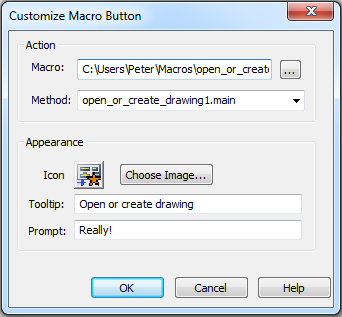
In the first line, you click the thingie on the right and find your macro file. Then select the method, this is usually the Main function.
When a new macro file is selected, the old icon is eagerly thrown out. Re-select the one you previously used. The Tooltip and the Prompt are just a title and subtext that appears when you hover over the macro button.
Click OK and tada! Your macro buttons works again.
What dull task have you automated recently? How did other people respond to that?